
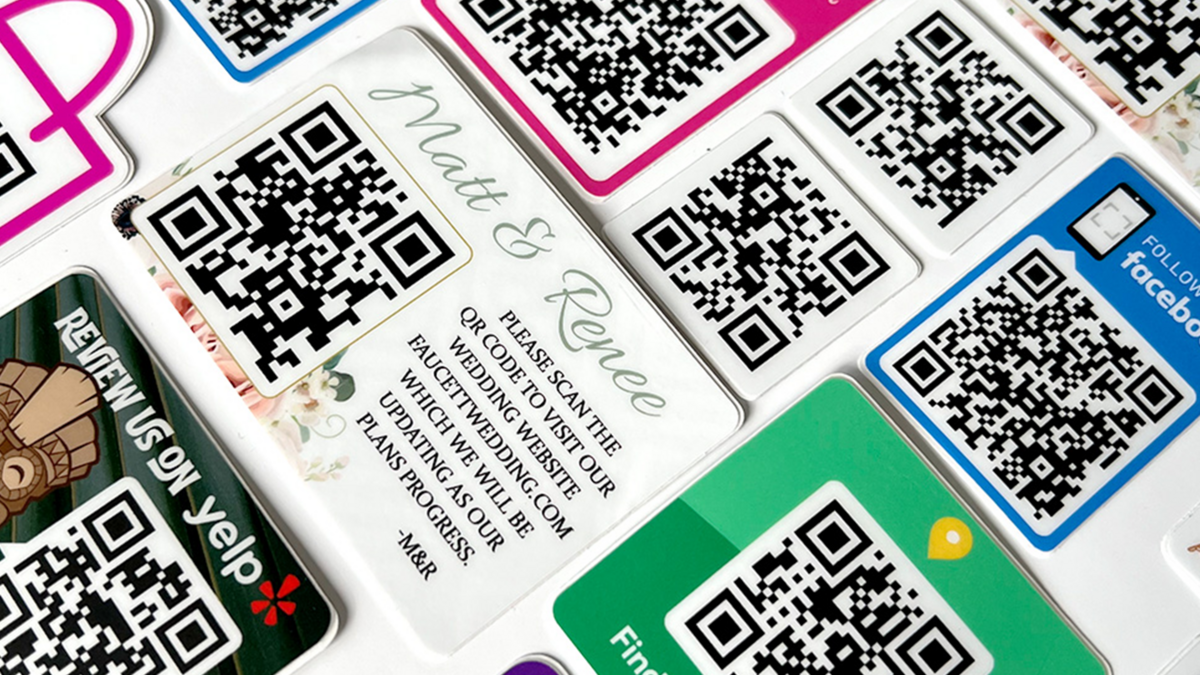
A coffee roaster can put “Scan to reorder this roast” on a bag and send customers straight to that product page. The same idea works at a booth, on a thank-you card, or at a checkout counter. Pick one thing customers will want to do at that moment, then give them a QR code sticker that takes them there.
How Do QR Codes on Stickers Work?
A QR code is a square barcode that can hold information like a website address or contact details. For a website link, customers can point a compatible phone camera at the code and tap the link that appears. The sticker gives them a shortcut to the page without having to type a web address.
What Should Your QR Code Link To?
Start with where someone will see the sticker. At a market booth, they may have a few seconds to save your details. At home, with a product in hand, they have time to look up instructions or place another order. Put a short prompt beside the code so they know what they’ll get when they scan.
- Reorders and product information. Put “Scan to reorder” on packaging and link directly to the item. For a product that needs assembly, “Scan for setup instructions” can take customers to the guide for that model.
- Promotions. Add “Scan for this month’s offer” to a counter display. If you plan to reuse the sticker, link to an offers page you can update at the same address. For a one-time sale, put the end date on the display so the offer is clear before anyone scans.
- Contact details and app downloads. On a handout, “Save my contact” can go next to a contact QR code (vCard) that lets people add your details to their contacts. If you’re promoting an app, “Get the app” can take customers to a page with download links for their phones.
- Text sign-ups. Link “Sign up for event texts” to your sign-up page. Open it on a phone to make sure people can see what they’re signing up for and finish the form.
- Payments. For a checkout sticker, use the code from your payment provider, such as PayPal. Verify that it opens the payment flow for your business before you print it.
Open the destination on your phone before you build the sticker. For the coffee bag, check that the link brings up the exact roast, with the order button easy to find. If that roast is seasonal, consider a page you can keep useful after it sells out, and use a prompt such as “Scan to shop our roasts.”
Want to see whether the coffee-bag sticker brings people back?
Give the bag its own tagged link before you turn it into a QR code. For a reorder URL with no existing query parameters, add ?utm_source=coffee_bag&utm_medium=qr&utm_campaign=coffee_reorder to the end. Use that whole URL when you make the code.
In Google Analytics, open Traffic acquisition and look for coffee_reorder under Session campaign. Sessions tells you how many visits were recorded. If you track purchases, choose purchase under Key events to see purchases recorded in those sessions. A scan that never opens the page won’t show up as a visit.
How to Add a QR Code to a Custom Sticker
For a website link, open the QR Code Stickers page and select Custom QR Code Stickers. In Product Details, choose your material and adhesive, enter the sticker’s width and height, and set the quantity before selecting Choose Your Design. In the CarStickers Design Tool, select Add Code, choose QR Code, and enter your website URL. Select Add to Design to place the code, then position it alongside your logo and scan prompt. If you already have a code, include it in the artwork you upload.
How to Make Your QR Code Easy to Scan
- Give the code a clean background. Dark squares on a solid white background are a good starting point. Keep the code square as you resize it, and leave blank space on every side at least as wide as four of the code’s small squares. Keep your text, logo, and cut edge outside that border.
- Size the code for where it goes. The sticker dimensions include everything in the design, so a larger sticker can still have a code that’s too small. Give a window or display code more room when people will scan it from farther away. On a small bottle or pouch, look for a flat spot where the whole code stays visible.
- Test the finished layout at actual size. A paper printout can help you catch problems if space is tight or people will scan from a distance. Hold it where the sticker will go and try it from that distance with more than one phone if you can. If the code scans on your desk and struggles in the display, check for glare, give the code more space, or move it closer to where people pause. Scan again after making a change, and follow the link to check that the page matches the prompt.
Pick one place to try your first QR code sticker. Once you have the destination and a short prompt, use the QR Code Stickers page to start a layout and see how much room you can give the code.


